September 16, 2026 • Darius Mosley • 10 min reading time • Prices verified June 29, 2026
Wi-Fi 6E Mesh Showdown: TP-Link Deco XE75 Family Compared Across Three Configurations
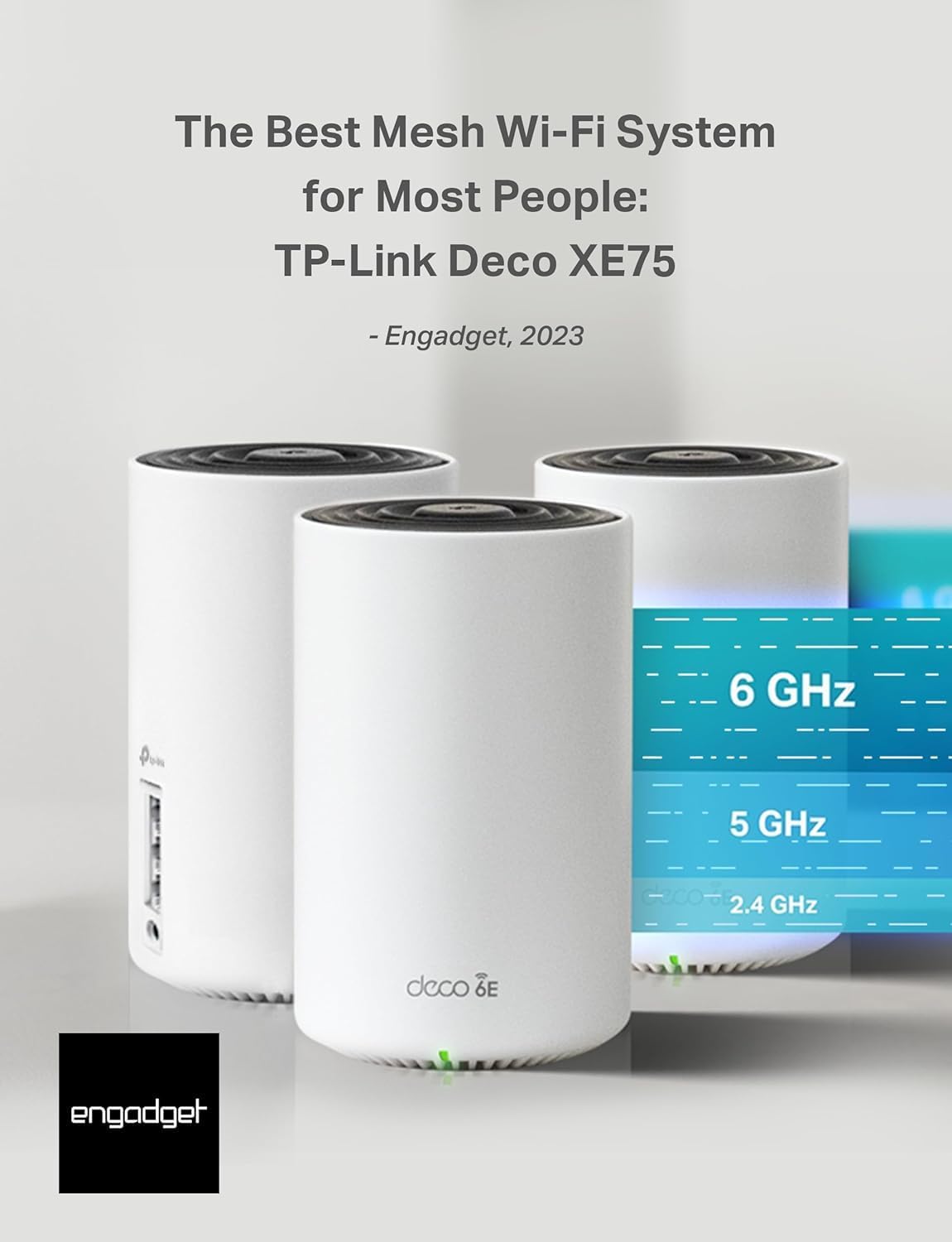
If you’ve ever shopped for a whole-home Wi-Fi system, you’ve probably run into a wall of nearly identical model numbers that differ by one letter or one digit — with no clear explanation of what actually changed. The TP-Link Deco XE75 family is a perfect example. These are mesh systems, meaning multiple devices (called nodes) work together to blanket your home in a single seamless wireless network rather than forcing you to manually switch between router and range extender signals. They support Wi-Fi 6E, the newest major wireless standard, which adds a 6 GHz frequency band — think of it as a brand-new, uncrowded highway lane that delivers faster speeds and lower latency (the tiny delay between a request and a response) compared to the older 2.4 GHz and 5 GHz bands most routers have used for years. The catch? Wi-Fi 6E’s higher frequency doesn’t travel as far through walls as older bands. How you configure your nodes — and whether you spring for the Pro variant — will determine whether you’re getting everything you paid for. This guide breaks down the real differences, shows the math, and gives you clear decision rules for each configuration.
| EDITOR'S PICKTP-Link Deco XE70 Pro AXE4900 T… | Mid-tierTP-Link Deco XE75 AXE5400 Tri-B… | Budget pickTP-Link Deco XE70 Pro AXE4900 T… | |
|---|---|---|---|
| Speed rating | AXE4900 | AXE5400 | AXE4900 |
| Coverage | 7,200 sq ft | 5,500 sq ft | 2,900 sq ft |
| Device capacity | 200 devices | — | 200 devices |
| WAN/LAN port | 2.5G | 1G | 2.5G |
| Pack size | 3-pack | 2-pack | 1-pack |
| Price | $249.99 | $153.17 | $119.99 |
| See on Amazon → | See on Amazon → | See on Amazon → |
What Actually Separates the XE75 from the XE75 Pro
This is the single most common source of post-purchase regret in the Deco XE75 ecosystem, and it deserves a direct answer up front: the hardware difference between the standard XE75 and the XE75 Pro is exactly one port.
Both units share the same tri-band radio stack: a dedicated 6 GHz backhaul band (the wireless link between nodes, rated at 4,804 Mbps), a 5 GHz client band (rated at 2,402 Mbps), and a 2.4 GHz band (574 Mbps). Both support up to 200 connected devices per node and run the same TP-Link Deco app. The wireless architecture — including the option for wireless or wired backhaul — is identical between them.
The Pro variant replaces one of the standard XE75’s two 1 Gigabit Ethernet ports with a 2.5 Gigabit Ethernet port. That’s it. One port. One upgrade. But if you’re on a multi-gig fiber plan (1.2 Gbps, 2 Gbps, or 5 Gbps tiers are increasingly common from providers like AT&T, Frontier, and Ziply as of mid-2026), that single port difference determines whether your primary node can actually ingest your full WAN (internet) speed. A 1 GbE port caps ingress at roughly 940 Mbps under real-world conditions. If your ISP plan is faster than that, the standard XE75 becomes a bottleneck at the gateway node — regardless of how good the 6 GHz backhaul is.
Per aggregated owner reviews surveyed across multiple retail platforms, several buyers report discovering this only after purchase, when wired backhaul throughput or WAN speeds plateaued at ~940 Mbps and they couldn’t explain why. PCMag’s Wi-Fi 6E mesh roundup explicitly flags WAN port speed as a purchasing filter for multi-gig households — a consideration that often gets buried beneath headline tri-band specs.
By the Numbers
| Deco XE75 | Deco XE75 Pro | |
|---|---|---|
| Max rated aggregate throughput | 7,200 Mbps | 7,200 Mbps |
| WAN / LAN port speeds | 2× 1 GbE | 1× 2.5 GbE + 1× 1 GbE |
| Dedicated 6 GHz backhaul | Yes | Yes |
| Wired backhaul support | Yes (both units) | Yes (both units) |
| Ideal WAN plan ceiling | ~940 Mbps | ~2,350 Mbps |
Three Configuration Scenarios and Which One Fits You
Rather than treating this as a spec recitation, let’s work through the three real purchasing configurations — two-pack XE75, two-pack XE75 Pro, and three-pack XE75 — and map them to actual use cases.
Configuration 1: Two-Pack XE75 (the smart starting point for most homes)
For a two-story home in the 2,000–3,500 sq ft range with a sub-1 Gbps internet plan, the standard two-pack XE75 is genuinely well-matched. Tom’s Guide’s coverage of the XE75 family highlights its dedicated 6 GHz backhaul as a meaningful differentiator from earlier Wi-Fi 6 (not 6E) mesh systems — because that backhaul band runs on its own radio, it doesn’t cannibalize the bandwidth available to your phones and laptops the way older mesh systems do.
Owners with heavy smart-home loads report particularly notable improvements. One verified long-term owner with 75+ connected devices — including an Apple HomeKit ecosystem and Sonos audio system — explicitly credits switching to TP-Link 6E mesh for eliminating chronic “No Response” errors in HomeKit and reducing Sonos lag that had plagued them under a previous popular mesh brand. This aligns with what SmallNetBuilder’s Wi-Fi 6E analysis documents: 6 GHz’s additional spectrum relieves contention on the 2.4 GHz band, which is where most IoT and smart-home devices live. When 6 GHz-capable clients offload to that band, the 2.4 GHz lane clears up for thermostats, bulbs, and sensors.
Decision rule: If your internet plan is 1 Gbps or below, your home is under 3,500 sq ft, and you have significant IoT or smart-home density, the two-pack XE75 represents strong value without overpaying for the Pro’s port upgrade.
Configuration 2: Two-Pack XE75 Pro (the right call for multi-gig and serious wired backhaul)
The 2.5 GbE port on the Pro isn’t just about WAN speed — it also matters if you’re running wired Ethernet cable between nodes (called wired backhaul, where nodes talk to each other over a physical cable instead of wirelessly). Wired backhaul essentially eliminates inter-node latency and delivers the full rated bandwidth between floors or across a long ranch layout. But if your in-wall Ethernet is Cat 5e or better and capable of 2.5 Gbps, you want a node that can actually use that headroom.
An IT professional reviewer with 45 years of networking experience, reviewing the XE75 Pro specifically for a ranch-style home with a full basement, describes the setup and performance as best-in-class for that floor plan — noting that the combination of wired backhaul on the main floor and wireless extension to the basement produced consistent throughput that commodity mesh systems couldn’t match in the same layout.
One XE75 Pro owner running the system on a Mac Mini benchmarked wireless throughput exceeding 1 Gbps on the 5 GHz band alone — which surprised them given that 1 Gbps had historically felt like a ceiling. TechRadar’s review of the XE75 family notes this is consistent with Wi-Fi 6E’s OFDMA (a technology that lets the router talk to multiple devices simultaneously on the same channel, rather than one at a time) improving real throughput under load, not just peak theoretical numbers.
Decision rule: If your internet plan is above 1 Gbps, or you plan to run Ethernet between nodes and want to future-proof, the two-pack XE75 Pro is the correct call. The port difference is real money well spent.
Configuration 3: Three-Pack XE75 (large single-story or multi-wing homes)
The three-pack configuration is not primarily about speed — it’s about coverage geometry. A single-story home at 4,000–6,000 sq ft (think ranch, sprawling open floor plan, or a home with a detached garage or ADU) needs nodes positioned to minimize the wireless hop distance from any device to the nearest node. Two nodes can leave significant dead zones at the perimeter.
Owners of large single-story homes consistently report the three-pack XE75 outperforming competing mesh brands that couldn’t crack coverage in far wings. One documented case involves a 5,000 sq ft single-story where a three-pack XE75 eliminated dead zones that a Google Nest mesh system could not address — despite the Google system having more nodes in that owner’s prior configuration. CNET’s Wi-Fi 6E mesh buyer’s guide attributes this type of outcome to the dedicated 6 GHz backhaul maintaining strong inter-node throughput even at longer distances where other systems degraded.
Decision rule: If your home is large, single-story, and predominantly open-plan, prioritize node count over the Pro port upgrade. Three standard XE75 nodes will serve you better than two Pro nodes in most ranch or sprawling layouts.
AT&T Fiber, Bridge Mode, and the Setup Reality
Multiple XE75 Pro and XE70 Pro owners have flagged the same issue: AT&T fiber bridge-mode instructions included in the box are incomplete, and owners frequently get stuck before finding supplementary guidance. Here’s the core workflow that resolves most AT&T fiber setups, based on aggregated owner documentation:
AT&T’s residential fiber gateway (typically a BGW320 or BGW210) does not natively support true bridge mode the way a standard cable modem does. What AT&T calls “IP Passthrough” is the functional equivalent — it forwards all inbound connections to a single designated device (your Deco primary node) while the AT&T gateway remains technically active. To configure this: log into your AT&T gateway’s admin interface (typically at 192.168.1.254), navigate to Firewall → IP Passthrough, set Allocation Mode to “Passthrough,” and select your Deco primary node’s MAC address as the passthrough device. Then configure your Deco app to use DHCP (not PPPoE) on the WAN side. This workflow is not clearly documented in the Deco box insert but resolves the vast majority of AT&T double-NAT and speed complaints reported by owners.
If your AT&T plan is 2 Gbps or higher, this is also where the XE75 Pro’s 2.5 GbE port becomes critical — the gateway-to-Deco connection needs to support more than 1 Gbps to benefit from the plan tier.
Frequently Asked Questions
What is the actual hardware difference between the XE75 and the XE75 Pro? One Ethernet port. The Pro replaces one of the two 1 GbE ports with a 2.5 GbE port. Every other hardware and software specification — radios, backhaul architecture, app features, device capacity — is identical between the two units.
Do I need the Pro version if my internet plan is exactly 1 Gbps? No. A 1 GbE WAN port delivers approximately 940 Mbps under real-world conditions, which is sufficient for a 1 Gbps plan. The Pro’s 2.5 GbE port only provides meaningful benefit when your WAN plan or wired backhaul connection exceeds what 1 GbE can deliver. Save the premium for a plan upgrade scenario.
How do I set up AT&T fiber with these Deco systems in bridge mode? AT&T doesn’t offer true bridge mode — use IP Passthrough instead. Log into your AT&T gateway at 192.168.1.254, go to Firewall → IP Passthrough, set Allocation Mode to Passthrough, select your Deco primary node by MAC address, and configure the Deco app to use DHCP on the WAN side. The in-box instructions are incomplete; this workflow resolves most AT&T-specific setup issues.
Can the 6 GHz band penetrate concrete walls and floors? Not reliably. Higher frequencies carry more data but lose energy more quickly through dense materials. Concrete walls and poured concrete floors attenuate 6 GHz signals significantly — expect substantial throughput loss or no usable signal through multiple concrete barriers. For concrete-heavy construction (basement slabs, CMU walls), plan your node placement so 6 GHz serves clients in line of sight or through lightweight interior walls, and rely on 5 GHz or wired backhaul for cross-floor coverage.
Does wired Ethernet backhaul between nodes require the Pro version? No. Wired backhaul is supported on both the standard XE75 and the XE75 Pro. The distinction is throughput ceiling: wired backhaul on a standard XE75 node caps at ~940 Mbps per the 1 GbE port; on the Pro, wired backhaul can run up to ~2,350 Mbps via the 2.5 GbE port. For most home applications, 1 GbE wired backhaul is more than sufficient.
Will these work with Apple HomeKit and Sonos without device dropouts? Based on documented owner experience, yes — and notably better than many prior-generation mesh systems. Owners who migrated from other popular mesh brands specifically to the Deco XE75 report the elimination of HomeKit “No Response” errors and Sonos lag. The mechanism is the 6 GHz band offloading high-throughput clients, which relieves congestion on 2.4 GHz where most smart-home and audio devices operate. Ensure your Deco app has “Smart Connect” enabled so 6E-capable devices automatically migrate to the 6 GHz band.