August 18, 2026 • Darius Mosley • 10 min reading time • Prices verified June 29, 2026
ISP Router Escape: Buying Your First Real Wi-Fi 6 Router
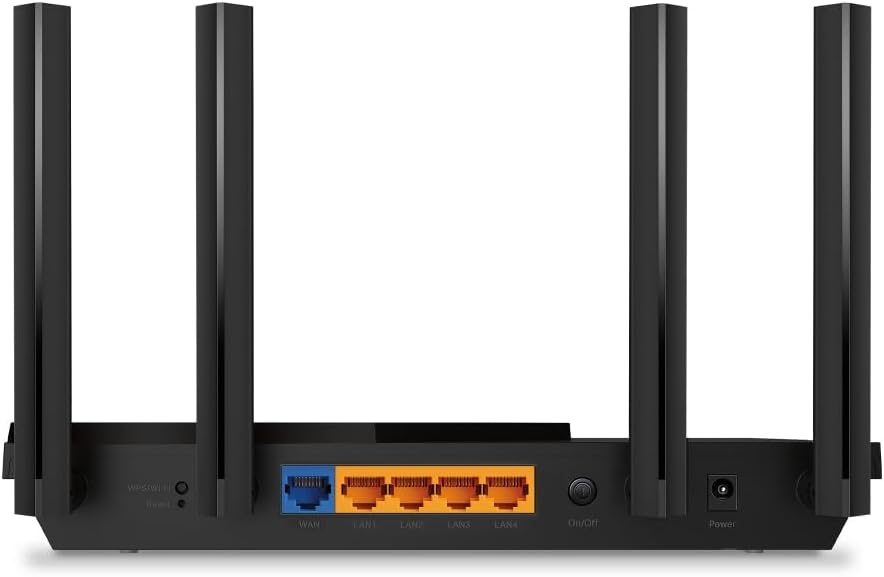
If you’re still using the router your internet provider handed you when the technician installed your service, you’re almost certainly paying a monthly rental fee — typically $10–$15 per month — for hardware that is several generations behind what you can buy outright for $60–$200. Wi-Fi 6 (officially called 802.11ax) is the current mainstream wireless standard, and it offers meaningfully faster speeds in crowded homes, better handling of many devices at once, and longer battery life for phones and laptops because of a feature called Target Wake Time (TWC), which lets devices sleep between transmissions instead of staying constantly alert. This guide walks you through replacing that ISP gateway with your own router: what to buy, what to watch out for, and how to make the switch without losing internet for an afternoon. If you’ve already read a few router spec pages and felt your eyes glaze over, good — that’s exactly who this is written for.
| EDITOR'S PICKTP-Link Tri-Band BE9700 WiFi 7… | Mid-tierTP-Link Dual-Band AX3000 Wi-Fi… | Budget pickTP-Link AX1800 WiFi 6 Router (A… | |
|---|---|---|---|
| Wi-Fi standard | Wi-Fi 7 (BE9700) | Wi-Fi 6 (AX3000) | Wi-Fi 6 (AX1800) |
| Speed rating | BE9700 | AX3000 | AX1800 |
| Coverage | 2,600 sq. ft. | — | — |
| Max devices | 120 | — | — |
| Multi-gig port | ✓ (10G + 2.5G) | — | — |
| USB port | — | USB 3.0 | — |
| Price | $249.99 | $84.99 | $55.49 |
| See on Amazon → | See on Amazon → | See on Amazon → |
Why the ISP Router Is Holding You Back (And What It Costs You)
The math here is uncomfortable once you run it. At a conservative $12/month rental fee over five years, you’ve paid $720 for hardware that often retails — when the ISP sells a comparable model outright — for under $100. Owners who finally make the switch consistently report this as a minor financial awakening, and the pattern shows up repeatedly across aggregated reviews on platforms like Amazon and Best Buy: people who held onto ISP equipment for five-plus years feeling genuinely annoyed once they see the numbers.
Beyond the rental math, the performance gap is real. ISP-supplied routers are typically specified to the minimum that keeps support calls low, not to maximize throughput or range. Reviewers at Tom’s Guide and PCMag consistently note that even mid-range retail routers — in the $80–$150 range — produce stronger signal at 30+ feet compared to typical ISP gateways, particularly through interior walls. The TP-Link Archer AX21, a budget Wi-Fi 6 router that appears frequently in entry-level comparisons, draws repeated praise in owner reviews for measurably stronger range versus the ISP hardware it replaced, especially in homes with more than two rooms between the router and the device.
By the numbers:
| Scenario | 5-Year ISP Rental Cost | Retail Router (AX21-tier) | Net Savings |
|---|---|---|---|
| $10/mo rental | $600 | ~$80 | ~$520 |
| $15/mo rental | $900 | ~$150 | ~$750 |
| $15/mo rental | $900 | ~$250 (AX55-tier) | ~$650 |
Matching the Router to the Job: AX21, AX55, and When to Go Higher
The two names that dominate the sub-$200 conversation right now are the TP-Link Archer AX21 and the TP-Link Archer AX55. They’re not interchangeable — each has a distinct use-case fit.
TP-Link Archer AX21 — The Clean Break
The AX21 is a dual-band Wi-Fi 6 router rated at AX1800 (1.8 Gbps aggregate across both bands — a theoretical ceiling, not a real-world throughput promise). For a 2-bedroom apartment, a small ranch-style home, or any space under roughly 1,500 square feet with a single floor, aggregated owner reviews suggest this router competes well above its price class versus ISP equipment. The signal improvement at range is the most cited win.
One thing worth flagging for privacy-conscious buyers: the TP-Link Tether app is not required. The router is fully configurable via a web browser at its local admin IP (typically 192.168.0.1). Several reviewers explicitly chose the web interface over the app citing data-collection concerns — a legitimate and functional alternative that TP-Link supports without restriction.
Tradeoff to name explicitly: The AX21 has a 1 Gigabit per second (1GbE) WAN port. If your ISP plan is 1 Gbps or below, you’re fine. If you’re on a multi-gig fiber plan (2.5 Gbps, 5 Gbps), the AX21 will bottleneck your connection at the WAN port before Wi-Fi becomes the limiting factor. This is the single most common mismatch mistake at this tier, and it’s worth double-checking your ISP plan speed before ordering.
TP-Link Archer AX55 — More Room to Grow
The AX55 steps up to AX3000 (3 Gbps aggregate, dual-band) and adds a few features that owners and reviewers consistently praise: WPA3 security (the current encryption standard, a meaningful upgrade from WPA2), Smart Connect (more on this in the FAQ), and noticeably dim green status LEDs that don’t light up a bedroom like a runway. One owner on a major retail platform offered a detailed before-and-after comparison to their previous Archer C7 (a beloved Wi-Fi 5 budget router), citing improved range and noticeably better handling of a home with 15+ connected devices.
Owners who step up from ISP hardware to the AX55 tend to stay satisfied for 3–4 years before feeling upgrade pressure, based on review longevity patterns tracked by Tom’s Guide and PCMag’s ongoing router coverage. Firmware support is a real factor here: TP-Link has maintained Archer series firmware updates consistently, though it’s worth checking TP-Link’s support page for your specific model at purchase time.
Tradeoff: Same 1GbE WAN port caveat as the AX21. If you have multi-gig service, neither of these is your router.
The Wi-Fi 7 Tier: Early-Adopter Risk Is Real
A note on the next rung up. The TP-Link Archer BE550 and BE600 sit at the Wi-Fi 7 (802.11be) entry level, and the editorial consensus as of mid-2026 is: proceed with caution. The BE550 has a notable one-star review pattern citing repeated random disconnections — a reliability variance that showed up even after one owner upgraded further to the BE900, suggesting a possible platform-level firmware immaturity rather than a single unit defect. The BE600 draws a specific complaint about weak 2.4GHz performance despite advertised backward compatibility with older devices.
Wi-Fi 7 is genuinely faster in ideal conditions, and the standard is real — but at the $150–$250 entry-level price point, the reliability record of Wi-Fi 6 hardware has a multi-year head start. Per Ars Technica’s Wi-Fi 7 coverage, the standard’s advantages (Multi-Link Operation, wider 320MHz channels) require client devices that also support Wi-Fi 7 to be realized. Most homes in 2026 have few such devices. If X is “I want the fastest possible router with no reliability variance,” then Y is “buy proven Wi-Fi 6 hardware and revisit Wi-Fi 7 in 12–18 months.”
Making the Switch Without Breaking Your Network
The actual swap is less intimidating than it sounds, but two failure modes trip up first-time switchers reliably enough to call out:
IP address conflicts. Your ISP router likely assigned devices on a 192.168.1.x or 192.168.0.x address range. Your new router may use the same default range. When you plug the new router in behind your ISP modem (if you’re keeping the modem — see FAQ #1), devices can get confused about which gateway they belong to. The fix is simple: log into your new router’s admin interface before connecting any devices, and change the LAN IP address range to something different (e.g., 192.168.2.1 as the router’s IP). That eliminates the conflict before it starts.
MAC address registration. Some ISPs — particularly older cable providers — lock your account to the MAC address (a unique hardware identifier) of the last device that connected to their modem. If you unplug your ISP router and your new router can’t get an IP address from the modem, this is likely why. The fix is either calling your ISP’s tech support (a 10-minute call, typically), or using the MAC address cloning feature available in virtually every modern router’s admin interface, which makes your new router impersonate the old one’s identifier.
SmallNetBuilder’s guides on modem/router separation consistently recommend power-cycling the modem (unplug it for 30 seconds) after connecting new hardware — this forces it to re-negotiate with whatever is now attached, and it resolves a surprising number of first-boot issues.
Frequently Asked Questions
1. Can I keep my ISP modem and just replace the router?
Yes, in most cases. If your ISP equipment is a standalone modem (handles the internet signal but not Wi-Fi), you plug your new router into it via an Ethernet cable and you’re done. If your ISP gave you a combined modem/router gateway (common with cable and fiber providers), you have two options: put the gateway in “bridge mode” (disables its routing and Wi-Fi, passing the connection through to your new router) or call your ISP and ask to swap the gateway for a standalone modem. Bridge mode availability depends on your ISP — Wirecutter’s router guides recommend confirming with your provider before assuming this option exists.
2. Do I need to call my ISP to register a new router’s MAC address?
Sometimes, yes. Cable ISPs in particular may cache the MAC address of your previous device. If your new router doesn’t get a WAN IP address after connecting, try power-cycling the modem for 60 seconds first. If that doesn’t work, use the MAC address cloning feature in your new router’s admin panel, or call your ISP’s support line — it’s a documented process they handle routinely.
3. What is Smart Connect and should I leave it on?
Smart Connect is a feature that presents your router’s 2.4GHz and 5GHz bands under a single network name (SSID), letting the router decide which band each device uses. It’s convenient — one password, one network in your device’s Wi-Fi list. Leave it on unless you have a specific reason to separate bands (some smart home devices require 2.4GHz only and can have trouble with Smart Connect on certain routers). If you notice a smart bulb or thermostat failing to connect, try disabling Smart Connect and manually joining that device to the 2.4GHz network.
4. Is the Tether app required, or can I set up via a web browser?
Not required. TP-Link routers — including the AX21 and AX55 — are fully configurable through a web browser by navigating to the router’s local admin IP address (printed on the router’s label, typically 192.168.0.1 or tplinkwifi.net). Several owners have explicitly documented choosing the browser interface over Tether for privacy reasons. The web interface is not a degraded experience; it exposes the same configuration options.
5. Will a Wi-Fi 6 router actually help if my internet plan is only 200Mbps?
Yes — and this is the most underappreciated point. Your internet plan speed is a ceiling for downloads from the web. Wi-Fi 6’s benefits show up in your local network: less interference from neighboring networks (OFDMA, a Wi-Fi 6 technology, handles multiple devices simultaneously on the same channel more efficiently), better range through walls, and improved reliability when 10+ devices are connected. Owners on 100–300Mbps plans consistently report Wi-Fi 6 improvements in the form of fewer dead zones and more consistent speeds across the house, not faster internet per se.
6. How do I avoid an IP address conflict when switching from my ISP’s router?
Before connecting any devices to your new router, log into its admin interface and change the router’s LAN IP address to a different subnet than your ISP gateway used (e.g., if your old gateway was 192.168.1.1, set your new router to 192.168.2.1). This prevents your devices from getting confused between the two address ranges during the transition. After making the change, power-cycle the modem and your new router before connecting other hardware.
The Decision Rule
If your internet plan is 1 Gbps or below, you’re renting your ISP’s equipment, and your home is under 2,000 square feet: the AX21 is the financially obvious move and the one that eliminates the rental fee fastest. If you have 15+ connected devices, a two-story home, or you want WPA3 and a longer ownership runway: step to the AX55 without hesitation. If you’re on multi-gig fiber, neither of these routers is the right answer — you need a router with a 2.5GbE WAN port minimum, and that’s a different buying guide. And if someone is pitching you on Wi-Fi 7 entry-level hardware right now: the reliability track record isn’t there yet. Wait six months and let the firmware mature.