September 20, 2026 • Darius Mosley • 11 min reading time • Prices verified June 29, 2026
Replacing Your ISP Router With a Real Firewall: TP-Link ER605 and ER7206 for Home Labs
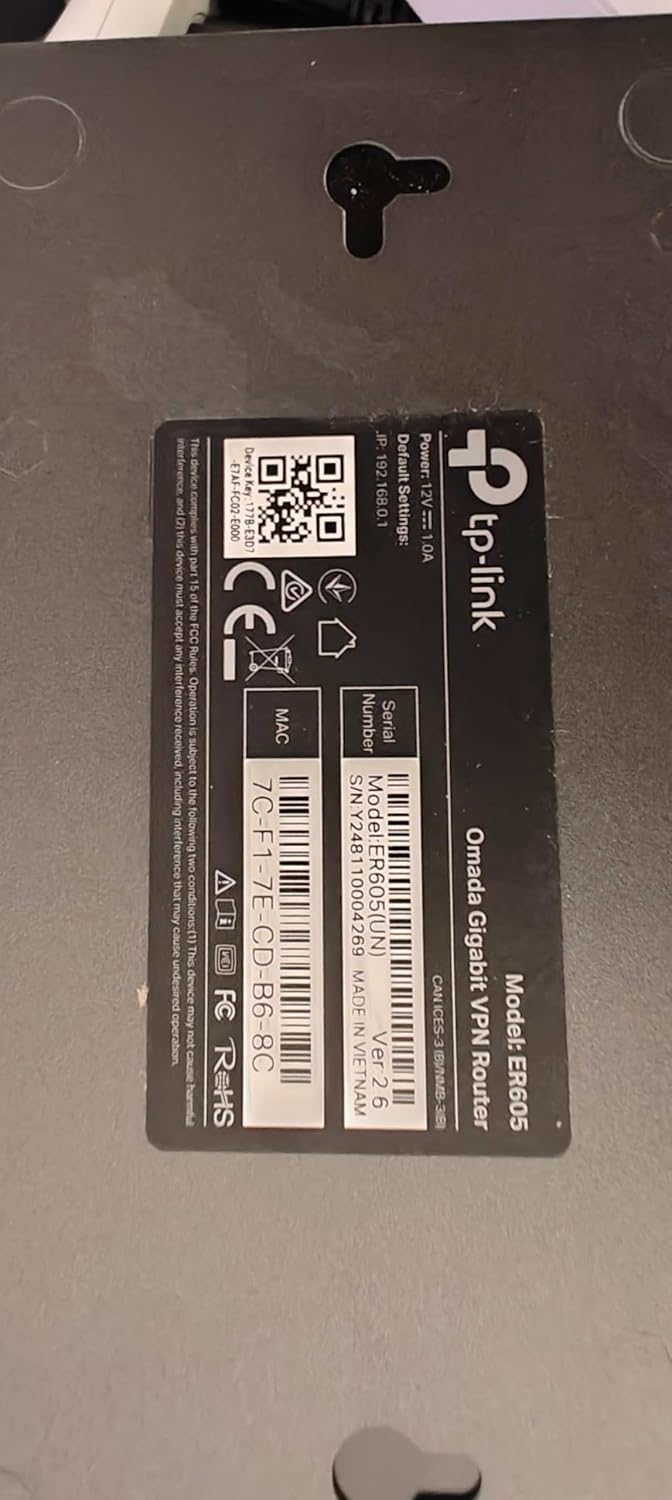
Most home internet setups ship with a single plastic box from your ISP — a device that combines a modem (the thing that talks to your ISP’s network), a router (the thing that assigns addresses and moves traffic between the internet and your devices), and a Wi-Fi radio all in one. That’s convenient for the ISP. It’s a compromise for you. These combo units typically run outdated firmware on a slow update schedule, offer limited control over who gets bandwidth priority, and mix your firewall logic with your Wi-Fi radio in ways that make both worse. A dedicated router — sometimes called a wired gateway or firewall/router — separates that job out cleanly, giving you a real security boundary, proper traffic controls, and a stable foundation to hang whatever Wi-Fi hardware you actually want. This guide is about three specific options from TP-Link’s Omada business line — the ER605, ER7206, and ER707-M2 — and whether any of them make sense for your home lab, your remote-work setup, or the network you’re rebuilding after something went wrong.
Why “Business Router” Isn’t a Scary Label Anymore
For a long time, “business-grade” routing meant rack-mounted hardware, per-device licensing fees, and a reseller relationship to even buy the thing. That market has compressed considerably. Per PCMag’s coverage of SMB networking in their 2025 small-business router roundup, the price gap between consumer and light-business routing hardware has narrowed to the point where dedicated wired routers from TP-Link’s Omada line routinely land under $100–$200, while delivering features — multi-WAN failover, VLAN segmentation, hardware VPN, ACL rules — that would have required Cisco or Fortinet hardware five years ago.
The value proposition is sharpest for three kinds of buyers: people rebuilding after a failure event (lightning strikes take out ISP combo boxes more often than dedicated routing hardware, partly because the ISP box sits directly in the line of every surge path); remote professionals who need a stable, auditable connection and can’t afford a dropped VPN tunnel during client calls; and home-lab builders who want to segment their IoT devices, NAS, and work machines onto separate VLANs without paying for a managed enterprise stack.
The ER605, ER7206, and ER707-M2 all sit in this gap. None of them have Wi-Fi radios. That’s a feature, not an omission.
The Three Models, Compared Directly
Here’s where buyers consistently get tripped up. TP-Link markets all three under the Omada SDN (Software-Defined Networking) umbrella, which implies you need a controller to use them. You don’t — and we’ll address that directly in the FAQ below. But the model differentiation matters, and TP-Link’s own naming doesn’t make it obvious.
By the numbers:
| Model | WAN Ports | Max WAN Speed | 2.5G Ports | Hardware VPN |
|---|---|---|---|---|
| ER605 | 1 WAN + 1 WAN/LAN + 3 LAN | 1 Gbps | No | Yes (IPsec/OpenVPN) |
| ER7206 | 1 WAN + 1 WAN/LAN + 4 LAN + 1 SFP | 1 Gbps | No | Yes, higher throughput |
| ER707-M2 | 2 × 2.5G WAN/LAN + 3 × 1G LAN | 2.5 Gbps | Yes (2 ports) | Yes |
The ER605 is the entry point. It handles a single gigabit WAN connection cleanly, has a USB port for LTE failover, and fits in a home where the internet line tops out at 1 Gbps. SmallNetBuilder’s throughput analysis of the ER605 v2 found NAT performance comfortably saturating a 1 Gbps pipe with firewall rules active, which is the real test — many cheap routers advertise 1 Gbps but slow down once you enable SPI (stateful packet inspection) firewall features. The ER605 doesn’t.
The ER7206 is the step-up for anyone running more simultaneous VPN tunnels, more clients, or a slightly larger network — think a five-person home office rather than a solo setup. TechRadar’s ER7206 review notes higher VPN throughput headroom compared to the ER605, more robust ACL (access control list) handling, and an SFP port for fiber-direct WAN connections, which matters if your ISP delivers fiber via SFP rather than an RJ-45 handoff. One ER7206 reviewer in the aggregated owner pool explicitly replaced an out-of-support Sonicwall appliance with it, noting that the TP-Link hardware cost less than a single year of Sonicwall’s support licensing — a pointed illustration of how much the market has moved.
The ER707-M2 is the outlier, and it’s specifically for one buyer: someone with two internet lines who wants multi-gig throughput from at least one of them. The two 2.5G WAN-capable ports mean you can run a 2 Gbps fiber line and a backup cable line simultaneously, with automatic failover between them. Reviewers consistently flag TP-Link’s port-labeling terminology as confusing — the WAN/LAN flexible ports are labeled in ways that don’t immediately indicate their 2.5G capability — but the underlying functionality, once configured, draws strong reliability notes. If you’re on a multi-gig plan (2 Gbps+) and the ER605 or ER7206 would create a WAN port speed mismatch, the ER707-M2 is the correct answer.
The Standalone Use Case TP-Link Doesn’t Lead With
TP-Link’s marketing emphasizes the Omada SDN ecosystem — a controller (hardware or software) that manages multiple devices from a single dashboard. This is genuinely useful at scale. It is not required for a home deployment.
All three routers expose a full-featured local web UI that operates completely independently of any cloud account or Omada controller. You can configure VLANs, set up dual-WAN failover, define firewall rules, run VPN servers, and manage DHCP entirely through the standalone interface. Ars Technica’s broader writing on network architecture has consistently made the point that separating routing from Wi-Fi — even with simple hardware — produces more predictable troubleshooting outcomes and cleaner security posture than integrated devices.
The standalone pattern is worth naming explicitly because a meaningful portion of ER605 and ER7206 buyers deploy them this way: as a dedicated firewall/router for a parent, a sibling, or a small-business owner they support remotely, with the web UI access tunneled over VPN back to them when configuration changes are needed. No recurring subscription. No cloud dependency. The router runs, and it keeps running.
Owners in long-run reviews consistently report 18+ months of zero-issue operation in properly conditioned environments — UPS-backed, moderate temperature. That reliability pattern is part of why the post-lightning-strike buyer gravitates here: after losing a consumer combo box, the upgrade to dedicated hardware feels like buying insurance, not just a replacement.
Where the Dedicated Router/Firewall Approach Wins (and Where It Doesn’t)
The case for separating your firewall from your Wi-Fi gets stronger as your network complexity grows. VLANs are the clearest example. If you want your IoT devices (smart bulbs, thermostats, cameras) on a network that genuinely cannot initiate connections to your work laptop or NAS, you need a router that understands VLANs — and you need it to coordinate with managed switches and access points that also understand VLANs. The ER-series routers handle this natively. Your ISP’s combo box almost certainly does not.
The case gets weaker if you’re a single-user apartment renter who just wants better Wi-Fi range. Buying an ER605 and then separately buying a Wi-Fi access point adds cost and configuration time that a good mesh system would avoid. Tom’s Guide’s coverage of home networking options has consistently noted that for coverage-only problems, a purpose-built mesh system is simpler and often faster to deploy.
There’s a pointed real-world counterpoint here. Aggregated reviewer data around the TP-Link Archer BE550 — a Wi-Fi 7 combo router — includes a notable one-star outlier from a buyer who used it to replace an eero Pro and experienced repeated stability failures before returning it. This isn’t a universal verdict on that hardware, but it illustrates the architecture argument: a device trying to be a router, a firewall, and a Wi-Fi access point simultaneously has more failure modes than devices doing one job each. When something breaks in a combo unit, you’re replacing everything. When something breaks in a separated stack, you’re replacing one layer.
Frequently Asked Questions
Can I use the ER605 or ER7206 without buying a full Omada controller or cloud account?
Yes, completely. All three routers in this guide — ER605, ER7206, and ER707-M2 — have a standalone local web interface that requires no Omada controller hardware, no software controller, and no TP-Link cloud account. You access it by typing the router’s IP address into a browser. If you later want centralized management of multiple devices, you can add an Omada controller (hardware or software) and the routers will join it — but this is optional, not required.
What is the difference between the ER605, ER7206, and ER707-M2, and which one do I need for gigabit fiber?
For a single gigabit fiber line (1 Gbps down/up), the ER605 handles it cleanly — published specs and SmallNetBuilder’s analysis confirm it saturates a 1 Gbps WAN with firewall rules active. The ER7206 adds more VPN throughput headroom, an SFP WAN port, and better handling of larger client counts. The ER707-M2 exists for multi-gig connections (2 Gbps+) or dual-ISP setups where you need 2.5G throughput per line. If your fiber plan is 1 Gbps or below and you have one ISP line, start with the ER605.
How do I set up dual-ISP failover with the ER707-M2?
The ER707-M2’s two 2.5G WAN-capable ports are configurable as WAN1 and WAN2. In the standalone UI, you navigate to the WAN settings and designate one as primary and one as failover — the router monitors connectivity via ping targets you define (typically 8.8.8.8 or 1.1.1.1) and switches automatically when the primary fails. You can also configure load balancing across both lines if you want to use both simultaneously rather than holding one as standby. The main friction point buyers flag is TP-Link’s port labeling in documentation, which uses “WAN/LAN” terminology that can obscure which ports support 2.5G — the two M2 ports on the front are the 2.5G-capable ones.
Do these routers work with a Deco mesh system, or do they conflict with Deco’s built-in router functions?
They work together, but you need to disable the routing function in the Deco system. Deco units include a built-in router mode that is active by default. If you plug a Deco into an ER605 or ER7206 without changing this, you create double-NAT — your traffic gets addressed twice by two different router functions, which causes inconsistent performance and breaks some VPN and gaming traffic. The fix is to put the Deco into Access Point mode (available in the Deco app under advanced settings), which turns off its routing function and lets the ER-series router handle all addressing. After that, the two systems coexist cleanly.
Is the USB WAN port on the ER605 reliable enough for LTE failover?
It’s functional, not primary. The ER605’s USB port accepts a limited set of LTE modems for WAN failover, and owners report that it works for the intended use case — keeping you online during a brief ISP outage while the primary WAN recovers. The caveat is modem compatibility: TP-Link publishes a supported-device list, and USB LTE failover with unlisted modems is hit-or-miss. For a more reliable failover path, the ER707-M2 with a second physical ISP line is a cleaner architecture. If USB LTE is your only fallback option, the ER605 handles it, but test your specific modem against TP-Link’s compatibility documentation before committing to that design.
Should I replace my ISP combo modem/router gateway with one of these, or just put the ISP device in bridge mode?
If your ISP allows true bridge mode — where the ISP device passes a public IP directly to your router with all NAT and firewall functions disabled — bridge mode is often the easier short-term path. The ER-series router handles everything downstream, and you’re effectively ignoring the ISP box’s routing features. The limitation is that some ISP devices (particularly cable modems with integrated DOCSIS routing) implement bridge mode poorly, passing some traffic incorrectly or re-enabling features after reboots. Full replacement, where you swap to a standalone modem and route with the ER-series device, gives you a cleaner architecture and removes the ISP box’s firmware from your trust boundary entirely. If your ISP supports a modem-only option and you’re comfortable with the initial configuration, full replacement is the more defensible long-term choice — especially as ISP combo boxes age out of firmware support.
The Decision Rule
If you have one internet line at 1 Gbps or below and you want a real firewall, VLANs, and hardware VPN without paying for a cloud subscription: the ER605 is your answer. It’s the lowest-friction entry into proper dedicated routing.
If you need higher VPN tunnel capacity, an SFP WAN port, or you’re managing more than a handful of clients: move to the ER7206.
If you have two ISP lines, or a multi-gig plan above 1 Gbps, and you need 2.5G throughput at the WAN: the ER707-M2 is the correct hardware. Budget for 30 minutes of terminology confusion during setup and you’ll be fine.
In all three cases: plan to disable routing in any downstream Wi-Fi system you attach, document your VLAN configuration somewhere outside the router itself, and run the device on a UPS. Owners who do all three report the kind of long-run reliability — measured in years, not months — that the ISP combo box was never built to deliver.