August 24, 2026 • Darius Mosley • 9 min reading time • Prices verified June 29, 2026
Building a VLAN-Segmented Home Network With TP-Link Omada Routers
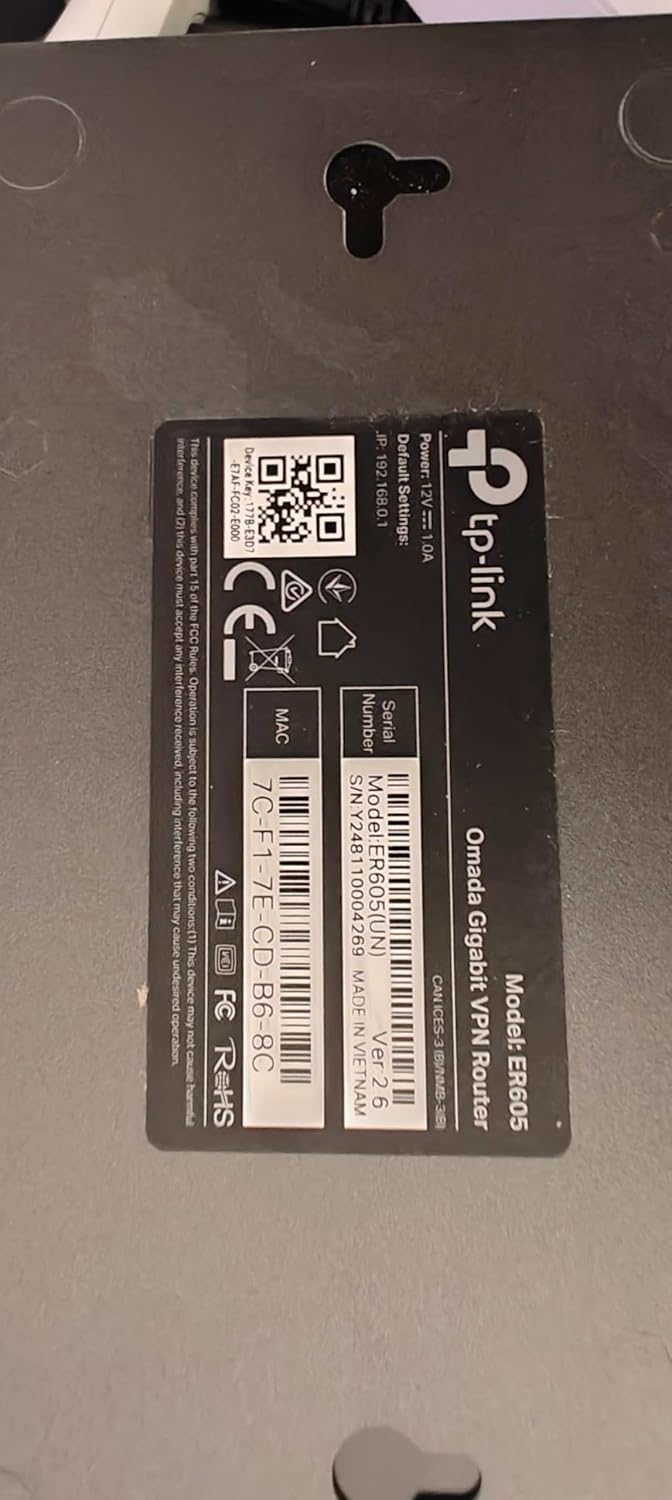
Most home networks are a single, flat pool — every device from your work laptop to your kid’s tablet to the smart thermostat shares the same connection and, critically, the same trust level. That’s fine until something goes wrong: a poorly secured smart bulb becomes a foothold into your work files, a visiting contractor’s phone can see your NAS, or your IoT gadgets slow down a video call. The fix is network segmentation using VLANs (Virtual Local Area Networks) — a technique that divides one physical network into multiple isolated lanes, each with its own rules about who can talk to whom. TP-Link’s Omada ecosystem — a family of routers, managed switches, and Wi-Fi access points controlled by a single software dashboard — makes this accessible at home-lab prices. This guide walks you through the architecture, the hardware decisions, and the exact configuration logic you need to get it done.
| EDITOR'S PICKTP-Link ER7206 Multi-WAN Profes… | Mid-tierTP-Link EAP610 Omada Business W… | Budget pickTP-Link TL-SG108PE V3 | 8 Port… | |
|---|---|---|---|
| Device type | VPN router | Access point | PoE switch |
| PoE budget | — | — | 64W |
| PoE+ ports | — | — | 4 |
| Port count | — | — | 8 |
| Wi-Fi standard | — | Wi-Fi 6 AX1800 | — |
| Price | $117.99 | $66.99 | $53.86 |
| See on Amazon → | See on Amazon → | See on Amazon → |
Why Omada, and What You’re Actually Building
Before picking hardware, it’s worth understanding why Omada earns a serious look in the sub-$1,000 home-lab space. The ecosystem competes directly with Ubiquiti’s UniFi on features — centralized controller software, per-SSID VLAN tagging, fine-grained firewall rules — while generally undercutting it on hardware price by 20–40 percent, according to aggregated pricing comparisons tracked by SmallNetBuilder’s product database as of early 2026.
The tradeoff is ecosystem depth. UniFi has a longer track record, a larger third-party integration community, and more granular telemetry. Omada’s controller software has matured significantly since version 5.x — long-run operators in forum reviews consistently note that firmware stability improved notably after the 5.9 release cycle — but if you anticipate needing features like advanced traffic shaping at the application layer or deep integration with network monitoring platforms, UniFi’s head start matters. For the majority of VLAN segmentation use cases — IoT isolation, guest networks, work-from-home separation — Omada’s feature set is sufficient and its price-to-performance ratio is genuinely strong.
The architecture you’re building looks like this:
- One Omada gateway router (ER7206 or ER8411) handling WAN uplink, routing between VLANs, and firewall policy
- One or two Omada managed switches (TL-SG2210P or SG3210) carrying 802.1Q VLAN trunk ports between devices
- One or more Omada EAP access points (EAP670 or EAP773) broadcasting separate SSIDs per VLAN
- The Omada Software Controller (free, runs on a local machine or a cheap cloud-hosted VPS) or an OC200/OC300 hardware controller tying it all together
Choosing the Right Omada Gateway: ER7206 vs. ER8411
The gateway is the decision that constrains everything else, so get it right before you buy.
By the numbers:
| Router | WAN Ports | Max VLANs | Routing Throughput | Price tier (2026) |
|---|---|---|---|---|
| TP-Link ER7206 | 1× 2.5GbE + 4× 1GbE WAN/LAN | 32 | ~2 Gbps (spec) | ~$130–$160 |
| TP-Link ER8411 | 1× 10GbE SFP+ + 2× 2.5GbE + 6× 1GbE | 64 | ~10 Gbps (spec) | ~$300–$350 |
The ER7206 is the right answer for most people reading this guide. Its 2.5GbE WAN port future-proofs you against multi-gig fiber tiers (a genuine concern — this site’s standing flag on WAN port mismatches exists because buyers routinely put a 1GbE router on a 2 Gbps service and wonder why they’re not getting what they’re paying for). PCMag’s router coverage notes that multi-gig ISP tiers are now broadly available in U.S. metro markets, making sub-2.5GbE WAN a potential bottleneck within a one-to-two-year horizon.
The ER8411 makes sense if you’re running a small office with 20+ users, need redundant WAN links, or are already on a 5–10 Gbps fiber tier. For a home lab or remote-professional setup, the ER7206 hits the sweet spot.
One critical note on the ER7206: its LAN-side ports are all 1GbE. If you’re moving large files between NAS and workstation on the same switch, that’s your bottleneck — the switch, not the router, becomes the throughput ceiling for inter-VLAN east-west traffic routed through the gateway. For most households this is invisible; for power users doing internal backups across VLANs, it’s worth factoring in.
VLAN Design: The Four-Zone Model
Resist the urge to over-segment. More VLANs means more firewall rules to maintain, more SSIDs competing for airtime, and more places for misconfiguration to hide. A four-zone model covers the realistic threat surfaces in a home or small-office environment:
VLAN 10 — Trusted LAN (your computers, NAS, work devices) This is your primary network. Full internet access. Can initiate connections to other VLANs if needed (e.g., pulling a Plex stream from the NAS when the media server also lives here). No inbound access from other VLANs without an explicit allow rule.
VLAN 20 — IoT / Smart Home Thermostats, cameras, smart bulbs, voice assistants. Internet access: yes (most need cloud services). Access to VLAN 10: blocked by default. This isolation means a compromised smart device cannot reach your laptops or NAS. Ars Technica’s home networking guide explicitly recommends IoT isolation as the single highest-impact security step for connected homes.
VLAN 30 — Guest Wi-Fi Visitors, contractors, anyone you don’t fully trust. Internet only — no access to any other VLAN. Consider applying a bandwidth cap here via Omada’s QoS profile (the controller supports per-SSID upload/download limits natively).
VLAN 40 — Work / VPN Optional but valuable for remote professionals. If your employer mandates a VPN client, this VLAN keeps work traffic physically and logically separate from personal devices. The ER7206 supports site-to-site IPsec and OpenVPN client mode natively — you can route VLAN 40 traffic through the VPN tunnel at the gateway level so every device on that SSID benefits automatically, without installing a VPN client on each one.
Switch and Access Point Selection
Switches: For a single-floor home, the TL-SG2210P (8-port PoE+ managed, ~$90) handles four to six VLAN trunk ports cleanly. It powers Omada EAPs over PoE, eliminating power adapters. If you’re wiring a multi-floor house, the TL-SG2218 (16-port) gives you room to grow without daisy-chaining. The key configuration move: set the uplink port to the router as a trunk port carrying all VLANs tagged, and set access ports (to endpoints) as access ports on their respective VLAN. The Omada controller handles this through a visual interface — you assign VLANs per port profile, not by hand-editing config files.
Access Points: SmallNetBuilder’s review of the EAP670 describes it as delivering “competitive throughput and range for its price tier” with Wi-Fi 6 (802.11ax) support across 2.4 GHz and 5 GHz bands. For most homes, one EAP670 per floor covers the use case. Each physical AP can broadcast up to eight SSIDs simultaneously — in practice you want no more than four to avoid airtime fragmentation — each mapped to its own VLAN. The EAP773 adds a 6 GHz band for Wi-Fi 6E capability and a 2.5GbE uplink port, which matters if your switch has a 2.5GbE port available; the 6 GHz band meaningfully reduces congestion in dense device environments, per Tom’s Guide’s coverage of Wi-Fi 6E adoption patterns in 2025–2026.
Firmware support reality check: As of May 2026, TP-Link has maintained active firmware updates for the EAP670 (released 2021) through the current generation — operators in long-run reviews note consistent security patches through at least Q1 2026. That’s a better track record than many consumer access points, but shorter than Ubiquiti’s UniFi AP-AC-Pro lineage, which received updates for over six years. If five-plus years of firmware support is a hard requirement, document TP-Link’s current published end-of-support policy before committing.
Configuring It in the Omada Controller: The Logic Flow
You don’t need to memorize CLI commands. The Omada Software Controller (version 5.14 as of this writing) walks you through a setup wizard, but understanding the underlying sequence prevents misconfiguration:
-
Create the Networks (VLANs). Under Settings → Wired Networks → LAN, add each VLAN with its ID (10, 20, 30, 40), subnet (e.g., 192.168.10.0/24), and DHCP settings. The controller auto-provisions the router’s VLAN interfaces.
-
Create Wireless SSIDs. Under Settings → Wireless Networks, create one SSID per VLAN zone. Assign each to its VLAN. VLAN 20’s SSID (“SmartHome”) maps to VLAN 20; VLAN 30’s SSID (“Guest”) maps to VLAN 30. Done.
-
Write Firewall Rules. This is where most first-timers stall. Navigate to Settings → Firewall → ACL. The rule logic is: source network → destination network → action. For IoT isolation, you need two rules: (a) deny VLAN 20 → VLAN 10, and (b) deny VLAN 20 → VLAN 40. VLAN 20 → WAN (internet) stays permitted. Rule order matters — the controller processes rules top-down; put denies above the default allow.
-
Assign Port Profiles to Switch Ports. Under Devices → your switch → Ports, assign each port’s profile. Trunk profiles carry tagged traffic to APs and the router; access profiles drop untagged traffic into a single VLAN for endpoint devices.
-
Test before you trust. Connect a device to each SSID and verify: can it reach the internet? Can it ping a device on VLAN 10 (it shouldn’t, from VLAN 20 or 30)? A $10 travel router in client mode makes this easier — you can test each VLAN without swapping physical devices.
If X, Then Y: Decision Rules
This is the decision you’re actually making:
If your ISP delivers 1 Gbps or less and you have fewer than 15 devices: ER7206 + one TL-SG2210P + one EAP670 per floor. Total outlay ~$350–$450. This covers the four-zone VLAN model completely.
If you’re on multi-gig fiber (2 Gbps+) or have 20+ devices: Step up to the ER8411 for WAN throughput headroom, and pair it with an EAP773 for 6 GHz capacity. Budget ~$700–$900 for the stack.
If you’re choosing between Omada and UniFi at similar price points: Omada wins on upfront cost; UniFi wins on ecosystem depth and community documentation. If you anticipate scaling beyond five access points or need advanced telemetry, the UniFi premium is easier to justify. For one to four APs in a home or small office, Omada’s feature set is sufficient for everything described here.
If long-term firmware support is a hard requirement: Check TP-Link’s published end-of-support schedule before purchase. The EAP670 has a strong recent track record, but no manufacturer guarantee has been published for eight-plus year support windows the way some enterprise vendors contractually commit.
The underlying principle across all of these decisions is the same one that applies to any infrastructure investment: buy for the network you’ll have in three years, not the one you have today. A VLAN-segmented Omada stack is not overkill for a connected home — it’s the minimum viable architecture for one that takes security and performance seriously.